How are training resources curated in TeSS?
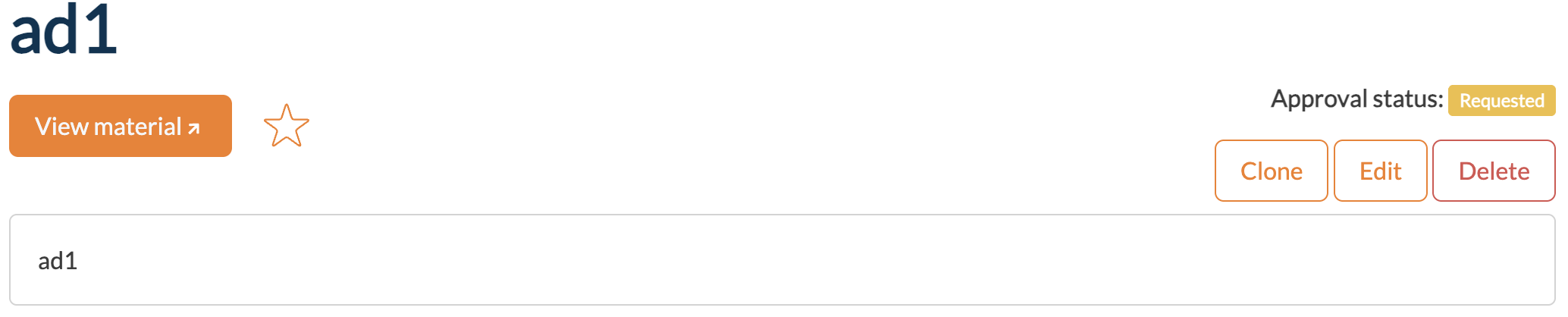
Any added training material or event (either manually or automatically) will be by default subject to verification and thus, not publicly shown in your TeSS instance. Your resource will be marked with an ‘Approval status’ set to ‘Requested’, as shown below:
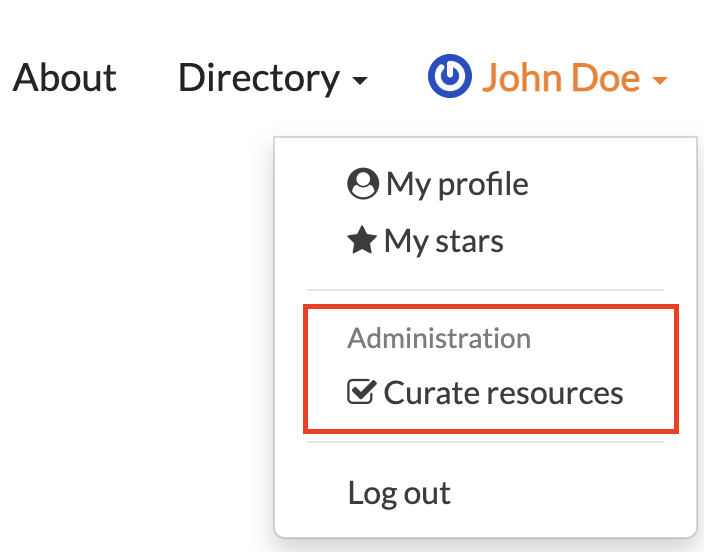
Curators can then have access to a dashboard to review the newly registered resources by accessing the dashboard for curation, which can be found by clicking on the dropdown menu of the user profile on the top-right of the page once logged in > ‘Curate resources’.
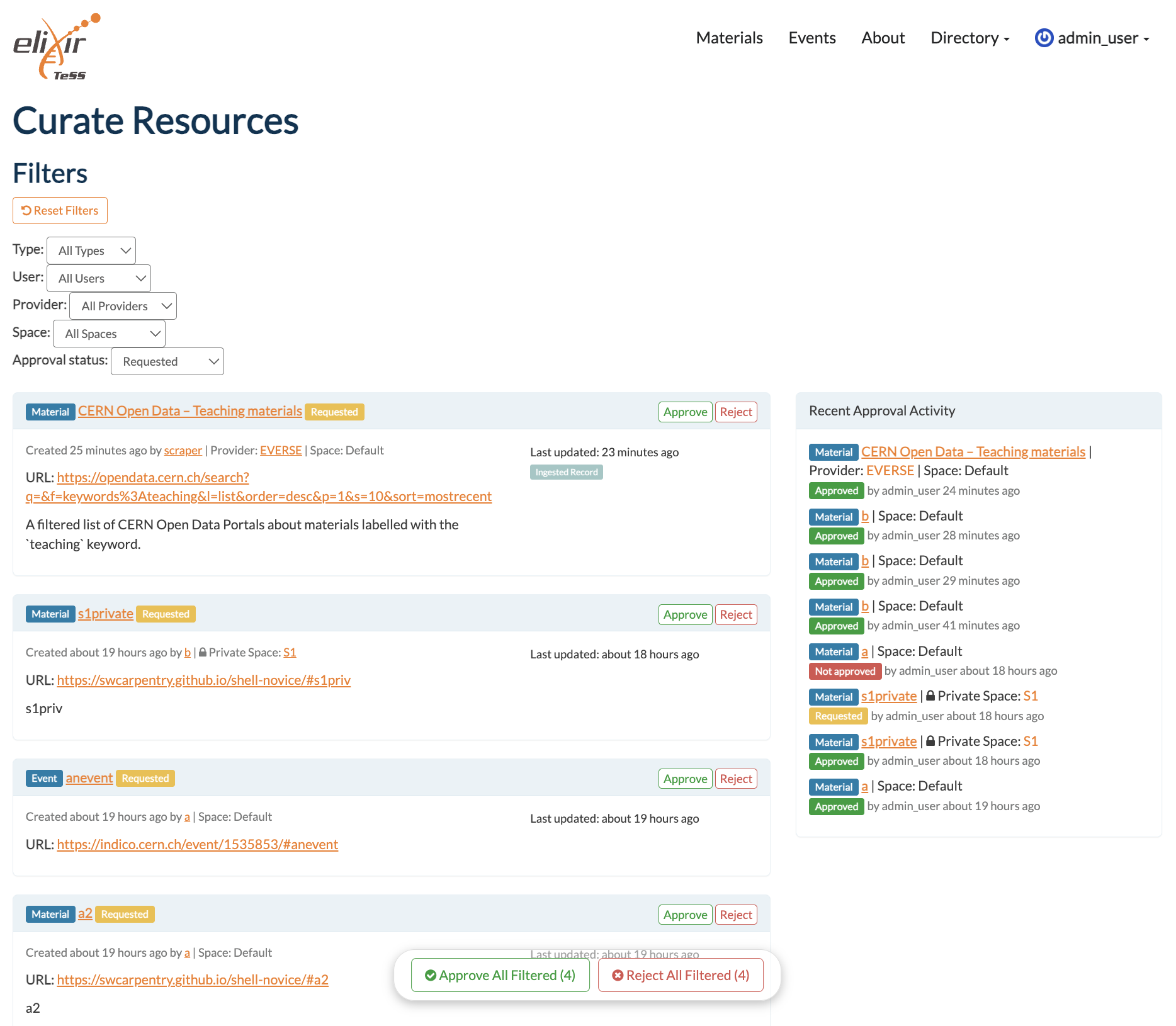
In the dashboard, curators can filter resources by Type (material, event), User, Provider, Space, and Approval Status. ‘Approve All Filtered’ and ‘Reject All Filtered’ buttons can be found at the bottom of the page to approve or reject all shown/filtered resources. For example, if you have a new Content Provider adding thousands of already curated materials, you can filter the list by its name and approve them all in a few clicks only.
How to revoke the approval status of a resource?
A curator may have misclicked the ‘Approve’ button, they may come back to their decision by editing the resource.
Go in the resource’s page
Click on the Edit button on the top-right
Scroll all the way down
Change the ‘Approval status’ field to ‘Requested’